On this page
The Genius Checkout WooCommerce plugin connects a supported Powertranz account to a WordPress store. Powertranz, formerly First Atlantic Commerce or FAC, processes the payment under the merchant's acquiring agreement. Genius Checkout creates the checkout session and returns the result to the WooCommerce order.
This guide reflects the integration reviewed on September 4, 2026.
| Requirement | Value |
|---|---|
| Store | Supported WordPress and WooCommerce installation |
| Plugin | Current Genius Checkout for WooCommerce release |
| Gateway | Powertranz Direct or hosted payment page |
| Currency | Enabled in WooCommerce, Genius Checkout, and the merchant account |
| Recurring payments | Requires WooCommerce Subscriptions and compatible tokenization |
Match the Powertranz mode before installing
Powertranz Direct and the hosted payment page use different credentials. Check the merchant onboarding pack for the exact mode, environment, merchant ID, password, and hosted-page settings. Do not infer the mode from the bank name.
Powertranz announced the First Atlantic Commerce rebrand in May 2025. Older bank material may still say FAC. Confirm ambiguous fields with the provider rather than reusing credentials from another module.
Configure Genius Checkout
- Create or select the Genius Checkout merchant that owns the store.
- Open Gateways and choose the Powertranz mode from the onboarding details.
- Enter test credentials and select a test currency.
- Save and run a payment-link test before connecting WooCommerce.
- Repeat the configuration in live mode only after the controlled test passes.
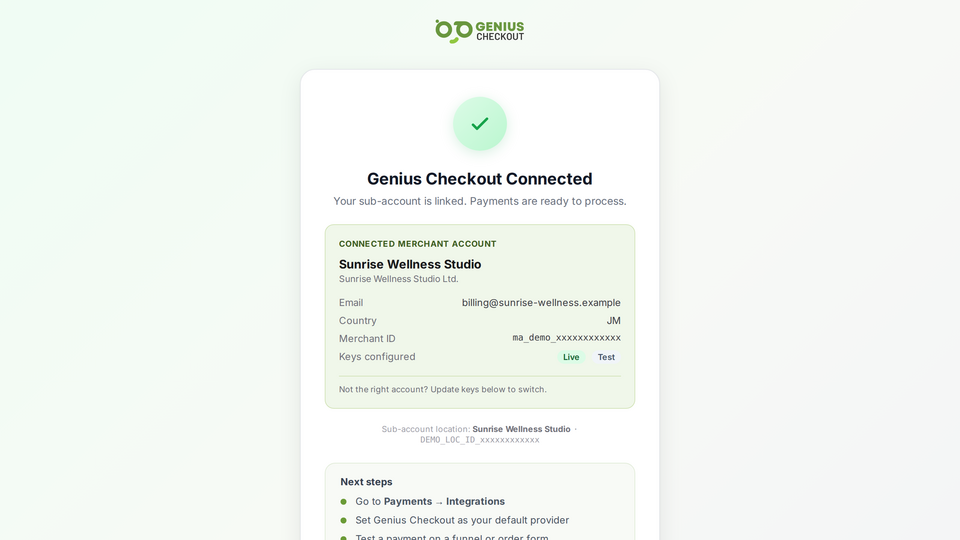 Gateway fields, currencies, and behavior must match the selected environment.
Install the WooCommerce plugin
- Install the current Genius Checkout for WooCommerce plugin.
- Open WooCommerce → Settings → Payments → Genius Checkout.
- Enter the Genius Checkout API credentials for the same merchant you configured.
- Select test mode and save.
- Confirm that the connection status names the intended merchant account.
- Choose the accepted payment methods you can support and test.
The payment-method selector controls the buyer-facing method hints. It does not enable a method on the Powertranz account.
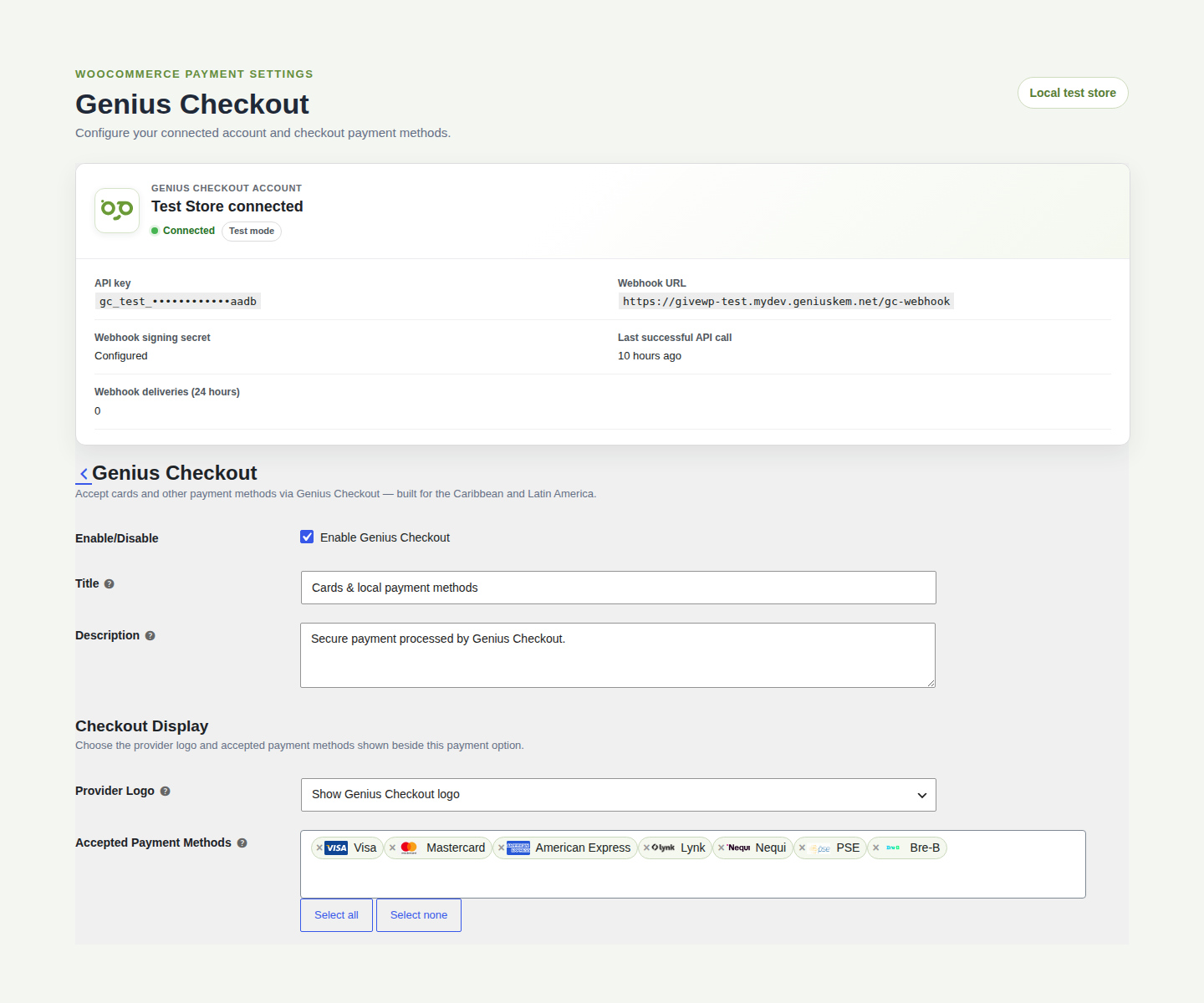 The plugin identifies the connected merchant and environment, masks the API key, and presents accepted payment methods as searchable tags.
The current plugin supports WordPress 6.0 or newer, WooCommerce 8.0 or newer, PHP 8.0 or newer, WooCommerce High-Performance Order Storage, and both classic and Blocks checkout. Confirm the latest requirements on the WordPress.org plugin page before upgrading a production store.
Test the order lifecycle
Create a low-value test product and use an approved test card. Verify:
- Checkout starts without a generic error.
- Buyer name, email, phone, address, amount, currency, and order reference remain accurate.
- WooCommerce receives a unique Genius Checkout transaction for each attempt.
- Success reaches the order-received page without an old decline notice.
- A cancelled payment leaves the order payable.
- The order note shows the transaction, receipt, gateway reference, brand, and last four digits when the gateway returns them.
Do not use a customer order or customer email for testing.
Subscriptions and saved cards
WooCommerce Subscriptions needs a reusable provider token. Powertranz must enable tokenization for the merchant account, and the Genius Checkout plan must permit recurring payments.
Test the first payment, a trial that begins at zero, a renewal, a failed renewal, a manual retry, and a payment-method update. Each retry must create a new Genius Checkout payment attempt. The failed transaction remains in the history.
Refund, void, and capture
The correct action depends on payment state and gateway capability:
- An authorization that has not been captured may require a void.
- A captured payment may allow a full or partial refund.
- An Authorize Only transaction may expose a capture action.
WooCommerce sends the requested action to Genius Checkout, which selects the supported gateway operation. Preserve the response and transaction timeline for audit.
Common start failures
Domain not authorized. Add the store domain to the merchant integration allowlist and avoid caching the previous rejection response.
No gateway configured. Confirm that the API key belongs to the merchant with the active Powertranz configuration.
Currency mismatch. The WooCommerce order currency must exist in both the Genius Checkout gateway settings and the Powertranz account.
Wrong environment. Test and live API keys, gateway credentials, domains, and currencies must stay aligned.
Genius Checkout should show the safe API error to the store owner instead of replacing it with “Payment could not be started.”
Use Powertranz beyond WooCommerce
The same Genius Checkout merchant can use an approved Powertranz account with HighLevel, Ecwid, GiveWP, payment links and QR codes, and supported custom API integrations. Test each source. They share a gateway configuration but retain separate orders, attempts, and return flows.